
AES128 BLE Encryption testing: Difference between revisions
No edit summary |
|||
| (8 intermediate revisions by 3 users not shown) | |||
| Line 7: | Line 7: | ||
If <b>BLE Encryption Key</b> is set, then device will communicate over BLE SPP (Serial Port Profile) with AES cipher mechanism. All incoming and outgoing data will be crypted with <b>AES128</b> algorithm with entered key. Connected to the other side device must have similar encryption method and algorithm <b>BLE Encryption Key</b> is a 16 byte hex coded string. | If <b>BLE Encryption Key</b> is set, then device will communicate over BLE SPP (Serial Port Profile) with AES cipher mechanism. All incoming and outgoing data will be crypted with <b>AES128</b> algorithm with entered key. Connected to the other side device must have similar encryption method and algorithm <b>BLE Encryption Key</b> is a 16 byte hex coded string. | ||
<br><br> | <br><br> | ||
#For <b>BLE Encryption</b> feature we need to download the [https://wiki.teltonika- | #For <b>BLE Encryption</b> feature we need to download the [https://wiki.teltonika-gps.com/images/b/b8/Simple_BLE_Terminal.zip Simple BLE Terminal].<br> | ||
#Using the <b>Teltonika Configurator</b> in <b> | #Using the <b>Teltonika Configurator</b> in <b>Bluetooth®</b> section, make sure that <b>BT Radio</b> is Enabled (visible). Also in this section <b>Local Name</b> and <b>Local PIN</b> of the device can be seen.<br><br>[[Image:Confblue.png|700px|center]]<br><br>[[Image:Confaes128.png|400px|right]] | ||
#Using <b>Teltonika Configurator</b> open <b> | #Using <b>Teltonika Configurator</b> open <b>Bluetooth® 4.0</b> section and in <b>BLE Encryption Key</b> input field type in the <b>AES Key</b> that you would like to use. <b>BLE Encryption Key</b> have to be a 16 byte hex coded string. Example of <b>AES Key:</b> 00112233445566778899AABBCCDDEEFF.<br><br>[[Image:Scantft.jpg|300px|right]]<br><br> | ||
#After the configuration of device and download of Simple BLE terminal has been completed, open the app and press scan. Select the device with which you are planning to test the functionality from available devices in BLE devices list:<br><br><br>[[Image:BLE terminal ciphered.png|300px|right]]<br>[[Image:AESkey.jpg|300px|right]]<br><br><br> | #After the configuration of device and download of Simple BLE terminal has been completed, open the app and press scan. Select the device with which you are planning to test the functionality from available devices in BLE devices list:<br><br><br>[[Image:BLE terminal ciphered.png|300px|right]]<br>[[Image:AESkey.jpg|300px|right]]<br><br><br> | ||
#Configure the <b>AES Key</b> in the <b>Simple BLE Terminal</b> by pressing three dots in the top right corner. Use the same <b>AES Key</b>, that have been typed in before into <b>Teltonika Configurator</b>.<br><br><br><br> | #Configure the <b>AES Key</b> in the <b>Simple BLE Terminal</b> by pressing three dots in the top right corner. Use the same <b>AES Key</b>, that have been typed in before into <b>Teltonika Configurator</b>.<br><br><br><br> | ||
Latest revision as of 15:15, 2 September 2024
Main Page > E-Mobility Trackers > TFT100 > TFT100 FAQ > AES128 BLE Encryption testingAES128 BLE Encryption testing
| NOTE! | AES128 BLE Encryption feature is only available on 55.01.06.Rev.00 FW or newer. |
If BLE Encryption Key is set, then device will communicate over BLE SPP (Serial Port Profile) with AES cipher mechanism. All incoming and outgoing data will be crypted with AES128 algorithm with entered key. Connected to the other side device must have similar encryption method and algorithm BLE Encryption Key is a 16 byte hex coded string.
- For BLE Encryption feature we need to download the Simple BLE Terminal.
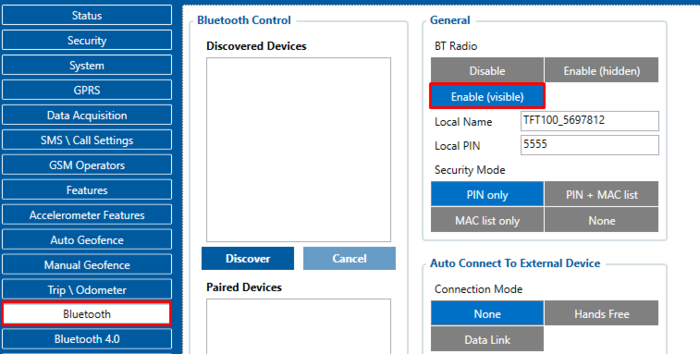
- Using the Teltonika Configurator in Bluetooth® section, make sure that BT Radio is Enabled (visible). Also in this section Local Name and Local PIN of the device can be seen.

- Using Teltonika Configurator open Bluetooth® 4.0 section and in BLE Encryption Key input field type in the AES Key that you would like to use. BLE Encryption Key have to be a 16 byte hex coded string. Example of AES Key: 00112233445566778899AABBCCDDEEFF.
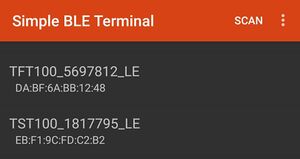
- After the configuration of device and download of Simple BLE terminal has been completed, open the app and press scan. Select the device with which you are planning to test the functionality from available devices in BLE devices list:

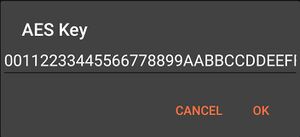
- Configure the AES Key in the Simple BLE Terminal by pressing three dots in the top right corner. Use the same AES Key, that have been typed in before into Teltonika Configurator.


|
Encryption Key matching
If the BLE Encryption Key does not match - response to sent command will not be received. |