[[File:Alert.png|left|link=]] <br> If you are not using Bluetooth®, '''please consider turning it off''' or '''change Bluetooth® PIN''' to remove potential risks.
If you are using Bluetooth® we strongly recommend '''using AES encryption''' for enhanced security.
Bluetooth LE Blue Puck and Blue Coin sensors are disabled by default. Configurations to these sensors are written through NFC.<br>
Bluetooth® LE Blue Puck and Blue Coin sensors are disabled by default. Configurations to these sensors are written through NFC.<br>
To do this download <b>[https://play.google.com/store/apps/details?id=com.ela.mobileapp.elamobileapp&hl=en_US| Device Manager Mobile]</b> by Ela from <i>Google Play Store</i> to your Android-powered device.<br>
To do this download <b>[https://play.google.com/store/apps/details?id=com.ela.mobileapp.elamobileapp&hl=en_US| Device Manager Mobile]</b> by Ela from <i>Google Play Store</i> to your Android-powered device.<br>
<b>Note!</b> Android-powered device that is used for configuring Blue Puck/Coin sensors must support NFC read/write functionality.<br><br>
<b>Note!</b> Android-powered device that is used for configuring Blue Puck/Coin sensors must support NFC read/write functionality.<br><br>
Follow these instructions to easily configure Blue Puck/Coin Bluetooth LE sensor:
Follow these instructions to easily configure Blue Puck/Coin Bluetooth® LE sensor:
*Enable <code>Bluetooth</code> and <code>NFC</code> on your Android-powered device.
*Enable <code>Bluetooth®</code> and <code>NFC</code> on your Android-powered device.
*Launch <b>Device Manager Mobile</b> on your Android-powered device.
*Launch <b>Device Manager Mobile</b> on your Android-powered device.
# Enter main device (FMBxxx/TFT100/TST100/GH5200/TMT250) IMEI<br>
# Enter main device (FMBxxx/TFT100/TST100/GH5200/TMT250) IMEI<br>
# Set <b>Update frequency</b> to <b>3600</b> (s) – <i>We do not recommend to set values below <b>1800</b> sec. in this field, as it will shorten the battery life.</i><br>
# Set <b>Update frequency</b> to <b>3600</b> (s) – <i>We do not recommend to set values below <b>1800</b> sec. in this field, as it will shorten the battery life.</i><br>
3. When TAT140 cannot see the main tracker Terminal will print a line as shown in example below:<br>
3. When TAT140 cannot see the main tracker Terminal will print a line as shown in example below:<br>
<code>[2021.10.26 10:50:03] – [ASSET.UART] << [2021.10.26 10:50:03] – [APP.TBT] ERROR! Amount of valid packets does not detect during this period! Triggering alarm </code><br>
<code>[2021.10.26 10:50:03] – [ASSET.UART] << [2021.10.26 10:50:03] – [APP.TBT] ERROR! Amount of valid packets does not detect during this period! Triggering alarm </code><br>
If you are not using Bluetooth®, please consider turning it off or change Bluetooth® PIN to remove potential risks.
If you are using Bluetooth® we strongly recommend using AES encryption for enhanced security.
Sensors
Configuring Blue Puck/Coin sensor
Bluetooth® LE Blue Puck and Blue Coin sensors are disabled by default. Configurations to these sensors are written through NFC.
To do this download Device Manager Mobile by Ela from Google Play Store to your Android-powered device. Note! Android-powered device that is used for configuring Blue Puck/Coin sensors must support NFC read/write functionality.
Follow these instructions to easily configure Blue Puck/Coin Bluetooth® LE sensor:
Enable Bluetooth® and NFC on your Android-powered device.
Launch Device Manager Mobile on your Android-powered device.
Select Configuration.
Place your Android-powered device on top of Blue Puck/Coin sensor to scan it.
Click Enable to allow Blue Puck/Coin sensor transmit advertising data. If it shows a tick, it is already connected to your phone.
We recommend to set Power to 4 to get the best possible distance.
Set BLE Emit Period to 1 seconds to get best possible sensor detection.
Click Write button.
Place your Android-powered device on top of Blue Puck/Coin sensor to write configuration to it.
Once the configuration is written successfully, the Blue Puck/Coin sensor will be enabled and use the settings configured in the APP.
NOTE!
Make sure that Manufacturer data mode is Disabled, otherwise BLE sensor will not be detected without additional changes in the device configuration.
Update Periods
size
BLE Feature: None – Bluetooth® functionality will be disabled. Sensors – Enables Bluetooth® functionality for sensors.
Update frequency – how often BLE scanning will run. Scan duration – how long scanning will be processed.
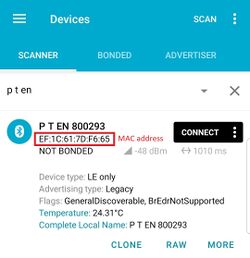
Type your Blue Puck/Coin MAC address in MAC field. You can check what is your MAC address by using nRF connect for Mobile app from Google Play.
Configure the sensor fields according to the type of sensor used. More information about these settings can be found on Blue Puck/Coin presets section.
After all these steps press Save to device to save configuration.
To check if the device has already received data from Blue Puck/Coin Bluetooth® LE sensor, follow these steps:
Navigate toStatus section.
Press I/O Info and look if BLE Temp has any values (depends on the type of sensor being used).
To check if the device has already received data from Blue Puck/Coin Bluetooth® LE sensor, follow these steps:
Navigate toI/O section.
configure BLE Temp section #1 if you only have one sensor configured.
Set sensor priority High to immediately send a record.
Select Temperature range (Low – High)
Select Operand:
On Entrance – when temperature enters specified range, the device sends a record to the server.
On Exit – when temperature exits specified range, the device sends record to the server.
On Both – Sends a record when device enters or exits specified range.
Monitoring – Performs the BLE scan when the device wakes up for periodic tracking action and sends the data to the server with the periodic record.
Record received to the Server
Device sent a record when it entered the range between 24 – 24.5 C
Blue Puck/Coin and EYE presets
To read data from Blue Puck/Coin and EYE sensors, Sensor table must be configured with specified parameters to a particular sensor.
Using premade sensor presets
The configurator includes premade presets for sensors such as Blue PUCK/COIN MOV, MAG, T, RHT and etc.
Blue Puck/Coin T
Bluetooth® LE Temperature sensor configuration
Type
Data Offset
Data Size
Action
IO
Match
Endianess
Multiplier
Offset
FE
5
2
Match
None
6E2A
Little Endian
1
0
FE
7
2
Save
Temperature
Big Endian
0.1
0
Blue Puck/Coin RHT
Bluetooth® LE Temperature and Humidity sensor configuration
TAT140 supports a feature which allows to work as backup tracker.
1. Even if Backup tracker is in alarm mode, device will continue to track its position as configured.
2. If FMBXXX device (Compatibility table) is turned off, Alarm event from the TAT140 will be received and AVL 236 in the data packet will be sent.
Topology scheme
Backup feature logic
NOTE:
If TAT140 does not pick up advertised data packets from main tracker, TAT140 enters alarm state, generates and starts sending records with AVL ID 236 (Value 0).
Parameter Name
Description
ID
Value
BLE Feature
Select which BLE feature is enabled. For Backup Tracker "Backup Tracker" feature has to be selected
189
0 - None 1 - Backup Tracker 2 -Sensors
Central Device IMEI
IMEI of central device that TAT140 is connected
190
Valid IMEI number
Update Frequency
Time in seconds for scanning intervals
1100
Min 5 sec. Max 66535 sec. Default 120 sec.
Scan Duration
Time in seconds for how long BLE scan will be running
To ENABLE backup feature on FMBXXX/TFT100/TST100/GH5200/TMT250 devices:
1. Bluetooth® → BT Radio set to Enable(visible)
2. Bluetooth® 4.0 → Backup Tracker set to Enabled
DEVICE RECOGNITION CHECK USING TERMINAL
Debug mode:
Device is able to transmit its current state when connected to PC using USB cable. It is used to detect
errors and provide information to possible solutions when operating as unexpected.
After launching terminal choose baud rate 115200 and hardware control – none.
Select COM port which is assigned to “Virtual COM Port”.
Click on ‘Start Log’ button and save a new file.
Then click ‘Connect’ to start receiving messages from device.
Required Terminal application for log capturing can be downloaded here: Terminal
TAT140 terminal instructions:
1. Connect TAT140 to the computer and open it with Terminal as shown in example above.
2. When TAT140 recognizes the main tracker, a terminal will print a line as shown in example below: [2021.10.26 06:28:40] – [ASSET.UART] << Device MAC: 785ae3d1f9de IMEI 141fa7497ac1 Command 0 Sequence 24 Packet Cnt 5
3. When TAT140 cannot see the main tracker Terminal will print a line as shown in example below: [2021.10.26 10:50:03] – [ASSET.UART] << [2021.10.26 10:50:03] – [APP.TBT] ERROR! Amount of valid packets does not detect during this period! Triggering alarm






.png)


