A company card is a type of smart card issued to transport companies for use with digital tachographs. It serves several functions, including access control to tachograph data (as required by, e.g., EU law).
To authenticate with the tachograph remotely you would need to download Company Card Authenticator. It is a Teltonika's built application that uses company card data to authenticate with the tachograph. In this page you will find information on system requirements that are necessary for downloading this a software. Furthermore, you will learn where to find, download and install Company Card Authenticator.
<br>
Company Card Authenticator (CCA) is a piece of software developed by Teltonika that allows to remotely authenticate with a tachograph to download DDD files.
==Purpose==
==PC Requirements==
Company Card Authenticator is a software that is used to perform remote authentication with a tachograph to perform DDD file download.
For CCA to work properly with TachoSync, the PC on which CCA is installed must always be turned on and online.
==Company Card Authenticator requirements==
<br><br>
Requirements for the PC:
* OS: Windows 10; Windows 11.
* CPU: Intel or AMD processor with 64-bit support.
* Disk Storage: 500 MB of free disk space.
* Internet connection: Required for downloading and operation.
<br>
TachoSync authentication service IP address and port:
* IP: 3.126.35.133
* Port: 7066
{| class="wikitable"
==How to Install CCA==
|'''OS'''||Windows 10; Windows 11
[[File:CCA.png|right]]
|-
# Go to [https://tacho.teltonika.lt TachoSync].
|'''CPU:'''||Intel or AMD processor with 64-bit support
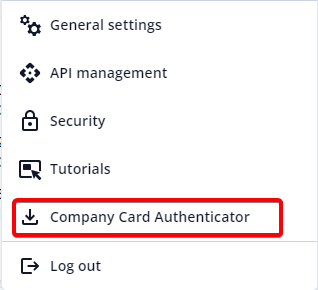
# Go to "Settings" in the top menu and select "Company Card Authenticator".
|-
# A window opens. Select the latest version and click “Download".
|'''Disk Storage:'''||500 MB of free disk space
# Open the downloaded file and install CCA.
|-
# Run CCA.
|'''Internet:'''||An Internet connection is required for CCA connection to Tacho Sync
Your card reader is now able to remotely authorize tachograph data downloads.
|-
<!---
|'''How to download:'''||You can download the CCA application once logged in to Tacho Sync (by navigating to Settings >> Download Company Card Authenticator).
PER PREZENTACIJĄ EVALDAS DARĖ VEIKSMUS PER WINDOWS SERVICES – PARAŠYTI ČIA?
|}
See “Companies” for more information about adding company cards IDs to TachoSync.
--->
==Downloading and installing==
To start using Company Card Authenticator follow these steps:
1. Go to TachoSync web page. TachoSync link: https://tacho.teltonika.lt/dashboard
2. Go to settings and select Company Card Authentificator. The download should start shortly after. [[File:CCA.png|thumb|alt=|none]]
3. Open downloaded file and this tab should pop up. Press ''Next'' on it[[File:CCA1.png|thumb|alt=|none]]
4. Agree with the terms and services and press ''Next'' [[File:CCA2.png|thumb|alt=|none]]
5. Change directory if needed and then press ''Install'' [[File:CCA3.png|thumb|alt=|none]]
A company card is a type of smart card issued to transport companies for use with digital tachographs. It serves several functions, including access control to tachograph data (as required by, e.g., EU law).
Company Card Authenticator (CCA) is a piece of software developed by Teltonika that allows to remotely authenticate with a tachograph to download DDD files.
PC Requirements
For CCA to work properly with TachoSync, the PC on which CCA is installed must always be turned on and online.
Requirements for the PC:
OS: Windows 10; Windows 11.
CPU: Intel or AMD processor with 64-bit support.
Disk Storage: 500 MB of free disk space.
Internet connection: Required for downloading and operation.
TachoSync authentication service IP address and port: