
Template:FTX First Start: Difference between revisions
No edit summary |
Irmantas.K (talk | contribs) No edit summary |
||
| Line 263: | Line 263: | ||
<li>Extract the archive and launch the executable. The TCT will be installed.</li> | <li>Extract the archive and launch the executable. The TCT will be installed.</li> | ||
<li>Launch the TCT.</li> | <li>Launch the TCT.</li> | ||
<li>Go to '''Settings''' -> '''User keys''', | <li>Go to '''Settings''' -> '''User keys''', copy and paste the full key text in '''Add new key''' field, then press '''Add key''' :<br> | ||
<pre style="margin-left: 0px;"> | <pre style="margin-left: 0px;"> | ||
BEGIN TCT KEY | BEGIN TCT KEY | ||
| Line 278: | Line 278: | ||
</ol> | </ol> | ||
<ol start="5"> | <ol start="5"> | ||
<li>Go to '''Settings''' -> '''Select firmware''', then select '''FTx305 with develop version firmware''' and press '''Apply''':[[Image:FTX305 select firmware.png|1000px]] | |||
</li> | |||
<li>In the Discovered devices list, select your device and press '''Configure'''.</li> | <li>In the Discovered devices list, select your device and press '''Configure'''.</li> | ||
<li>The Device status window opens. It contains device, GNSS, and Cellular information.[[Image:FTX device status.png]]<br>[[Image:FTX buttons.png|left|120px]] | <li>The Device status window opens. It contains device, GNSS, and Cellular information.[[Image:FTX device status.png|1000px]]<br>[[Image:FTX buttons.png|left|120px]] | ||
Save to device – saves configuration to device.<br><br> | Save to device – saves configuration to device.<br><br> | ||
Upload file – loads configuration from file.<br><br> | Upload file – loads configuration from file.<br><br> | ||
Revision as of 15:27, 29 April 2025
[[Image:{{{model}}} side.png|thumb|400x300px|right|upright=0.35|{{{model}}}]]
KNOW YOUR DEVICE
[[Image:{{{model}}} know your device.png|400px]]
SET UP YOUR DEVICE
 |
Physical SIM card insertion/removal must be performed when device is powered off – external voltage disconnected. Otherwise, the SIM card might be damaged or device will not detect it. |
[[Image:{{{model}}} setup.png|1000px|left]]
PINOUT
PC CONNECTION (WINDOWS)
HOW TO INSTALL USB DRIVERS (WINDOWS)
- Please download COM port drivers from here.
- Extract and run TeltonikaCOMDriver.exe.
- Click Next in driver installation window.
- In the following window click Install button.
- Setup will continue installing the driver and eventually the confirmation window will appear. Click Finish to complete the setup.
CONFIGURATION (WINDOWS)
Most Teltonika devices are shipped with default factory settings. Use Telematics Configuration Tool (TCT) to change these settings according to your needs.
| PIN NUMBER | PIN NAME | DESCRIPTION |
[[Image:{{{model}}}_pinout.png|400px|center]]
|
|---|
| TCT | |
|---|---|
| Operating system | Windows 10 Windows 11 |
| MS .NET Framework version | MS .NET framework 6.0 |
| Version | 64 bit |
| Disk Storage | 1 GB of free disk space |
| Internet | Ethernet port or Wi-Fi w/ network access for auto-update |
TCT
- Download the TCT (compressed archive).
- Extract the archive and launch the executable. The TCT will be installed.
- Launch the TCT.
- In the Discovered devices list, select your device and press Configure.
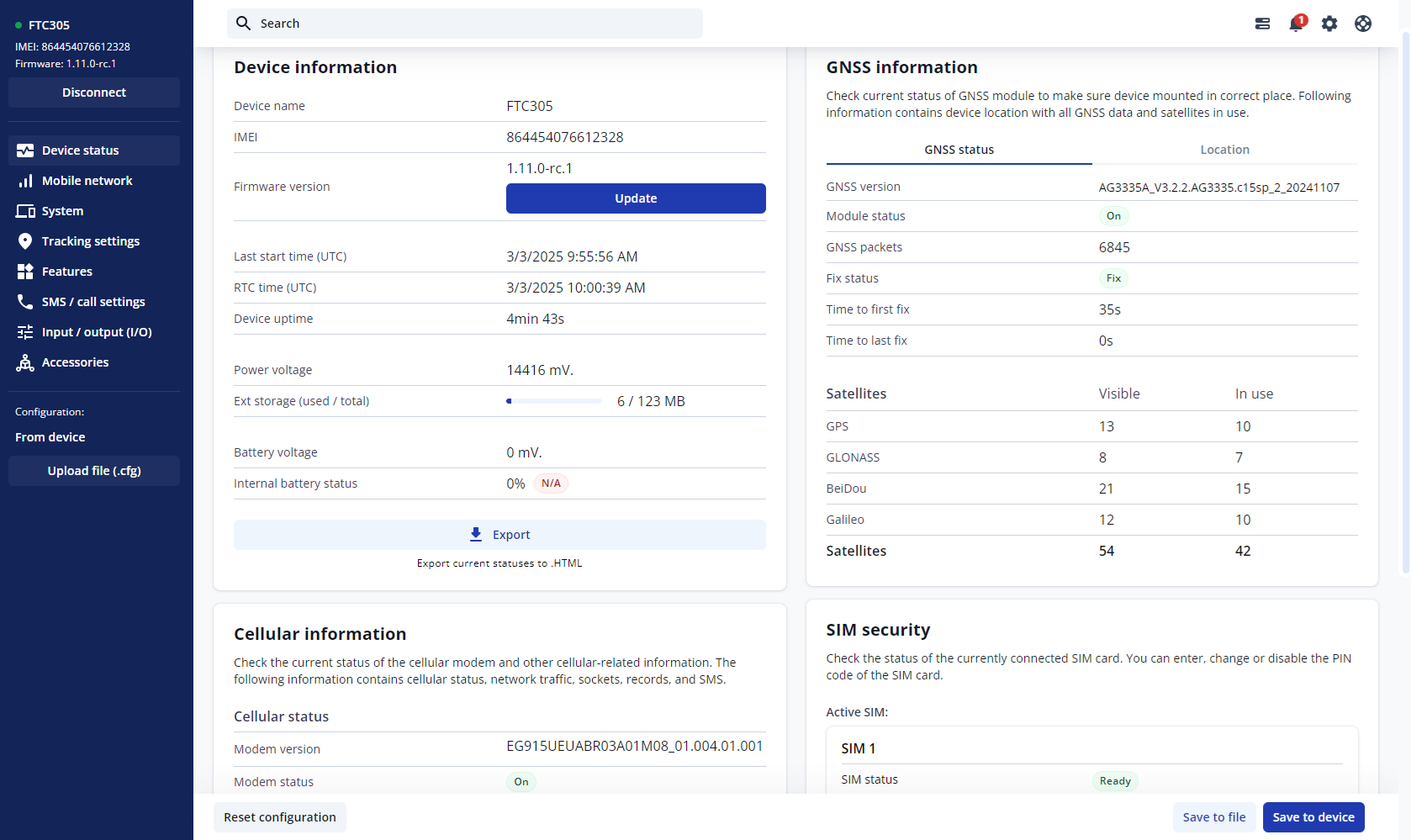
- The Device status window opens. It contains device, GNSS and Cellular information.


Save to device – saves configuration to device.
Upload file – loads configuration from file.
Save to file – saves configuration to file.
Update – update device firmware.
Reset configuration – sets device configuration to default.
Most important configuration sections are Mobile network (Server, Mobile network settings) and Tracking settings (data collection parameters). More details about {{{model}}} configuration using TCT can be found here.
QUICK SMS CONFIGURATION
The default configuration ensures best track quality and optimal data usage.
Quickly set up your device by sending this SMS command to it:

DEFAULT CONFIGURATION SETTINGS

After successful SMS configuration, {{{model}}} device will synchronize time and update records to configured server. Time intervals and default I/O elements can be changed by using TCT or Parameter list.
MOUNTING RECOMMENDATIONS
LED INDICATIONS
This section is an explanation of LED indications on {{{model}}} device.
BASIC CHARACTERISTICS
[[Category:{{{model}}}]]