FTC968 User Key: Difference between revisions
| Line 7: | Line 7: | ||
!Comment | !Comment | ||
|- | |- | ||
|'''3.0.10'''||2025-12-04 | | style="text-align: center;"| '''3.0.10''' | ||
|The desktop application's underlying framework has been migrated from '''Electron.NET''' to the lightweight '''Photino.NET'''. This change is the primary reason for the major version increment. Installing TCT 3.0.0 or any subsequent version will not automatically remove previous TCT 2.0.X installations. To avoid potential conflicts and reclaim disk space, you must manually uninstall any TCT 2.0.X versions. | | style="text-align: center;"| 2025-12-04 | ||
| [[File:Download_zip.png|x100px|link=https://github.com/teltonika-telematics/tct/releases/download/v3.0.10/TelematicsConfigurationTool.Setup.3.0.10-windows-x86_64bit.zip]] | |||
| The desktop application's underlying framework has been migrated from '''Electron.NET''' to the lightweight '''Photino.NET'''. This change is the primary reason for the major version increment. Installing TCT 3.0.0 or any subsequent version will not automatically remove previous TCT 2.0.X installations. To avoid potential conflicts and reclaim disk space, you must manually uninstall any TCT 2.0.X versions. | |||
|} | |} | ||
<li>Extract the archive and launch the executable. The TCT will be installed.</li> | <li>Extract the archive and launch the executable. The TCT will be installed.</li> | ||
Latest revision as of 15:25, 5 January 2026
- Download the TCT (compressed archive).
- Extract the archive and launch the executable. The TCT will be installed.
- Launch the TCT.
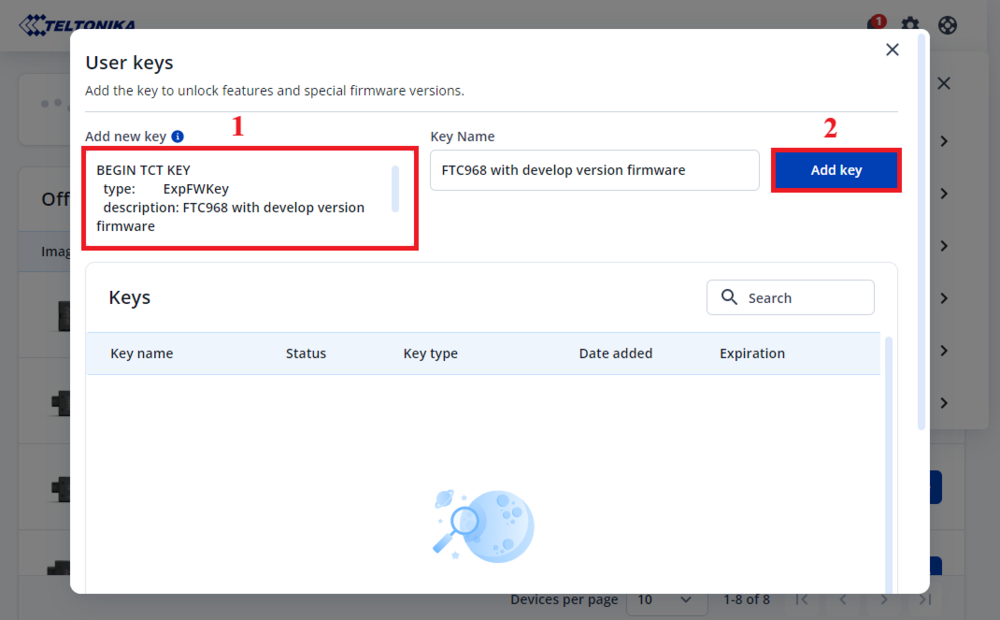
- Go to Settings -> User keys, copy the full key text from "BEGIN TCT KEY" to "END TCT KEY" and paste in Add new key field, then press Add key:
BEGIN TCT KEY
  description: FTC968 with develop version firmware
  type:        ExpFWKey
  key:         87fd1cdf-7119-499f-bb55-f76db98a6b1e
  expires:     2026-07-30
  signature:   v1|MOIg9XtRr9ixrhc3B7C1vqbhq3d6gDOxSPPyLMUF+rwPbmaCh6MWCB9PsMCRArlYnjoZAGiiCBMCBMtjOYX2EAHjO3Ozux6rtYqti0IVJcA1JJuFjYdFO/TaRc/j4geNTA9FDsTpmLQ055FPOhr8Lz253D7exqtSzGYrG32FhRe75HebIMXpojF8UnLWVgEeBI9+lpK7Q2+a54Iib7RXZiJ+r0S9aiaPElnV06RzFY6p4Ms2Hbty/DLwvWYiL1AlsHtWs96JCFM/GkaiE6uaA6EYIDb//tWl/Eeyv54BCqWJeCBvg7HrQoUZsi+2jyb6wrUMO0Sxw6copjnwLAil8w==
END TCT KEY
Note: This TCT key will expire on 2026-07-30. Please contact us via HelpDesk to receive a new one before the expiration date.
TCT Download Link
Below you can find the installation file for the latest version of TCT:
| Version | Upload date | Link | Comment |
|---|---|---|---|
| 3.0.10 | 2025-12-04 | 
|
The desktop application's underlying framework has been migrated from Electron.NET to the lightweight Photino.NET. This change is the primary reason for the major version increment. Installing TCT 3.0.0 or any subsequent version will not automatically remove previous TCT 2.0.X installations. To avoid potential conflicts and reclaim disk space, you must manually uninstall any TCT 2.0.X versions. |

- Go to Settings -> Select firmware, then select FTC968 with develop version firmware and press Apply:

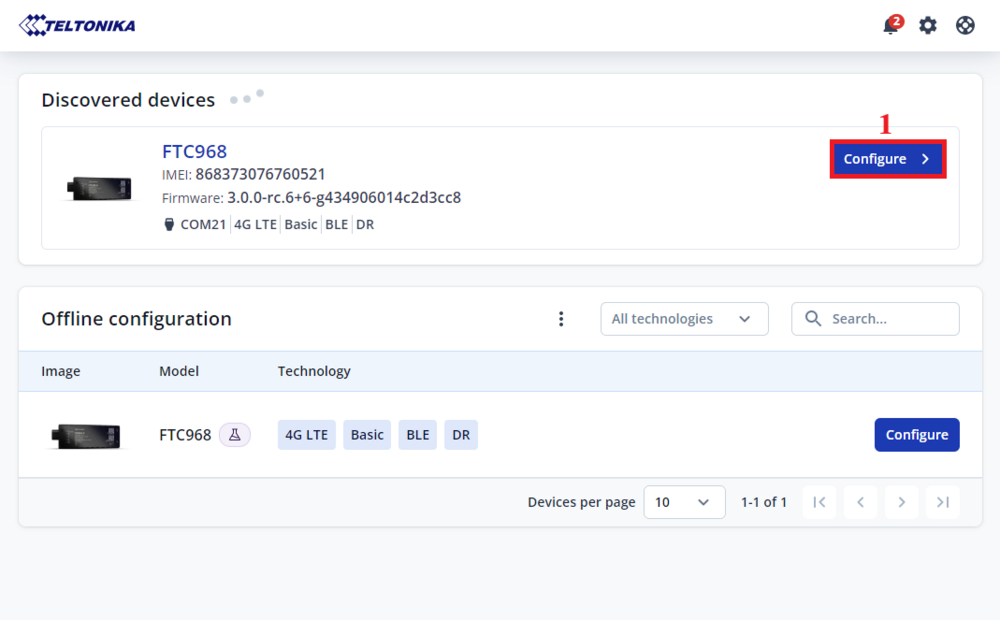
- In the Discovered devices list, select your device and press Configure: