Following are the instructions on how to easily prepare Blue-tooth Dongle connection to the FMB device. First we need to configure FMB device Blue-tooth settings. These are the required steps:
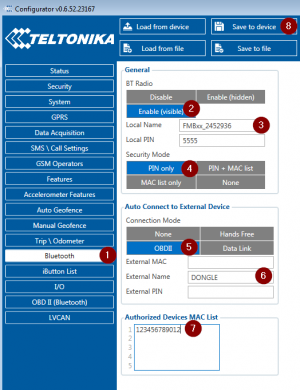
Go to Blue-tooth section similarly to as shown in the figure to the right (position 1).
Turn on BT Radio by pressing Enable (visible) (position 2). "Local name" (position 3) will automatically be "FMB1YX_last 7 imei digits", you can leave it or type your own name.
Set Security Mode (position 4) to PIN only or None (you could select PIN + MAC list or MAC list only security mode but in this case you need to type external device MAC address in Authorized Devices MAC List (position 7).
Set connection mode to OBDII (position 5).
Set External Name as your Blue-tooth OBD II device name for proper device identification and connection to it. In this example OBDII device name is "DONGLE", at least 2 characters are needed to recognize it and connect to it. For better and faster adapter identification in network you could enter a full device name. You could check your OBDII adapter Blue-tooth name by scanning nearby Blue-tooth devices using a mobile phone or a computer with Blue-tooth adapter.
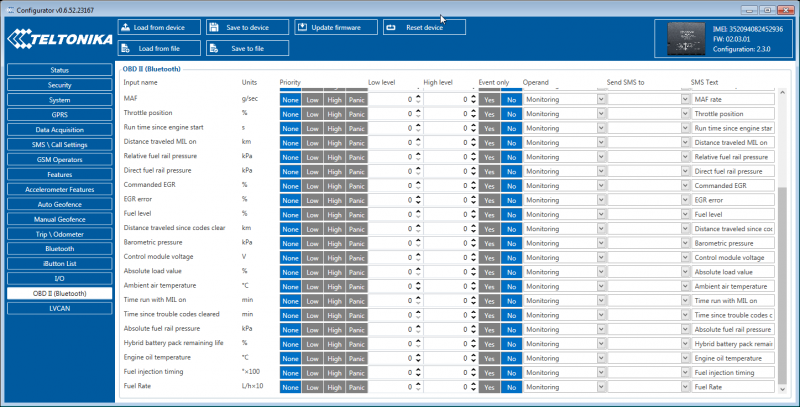
Go to OBD II in main menu and select priority and others parameters visible in the following figure.
After all these steps press Save to device to save configuration (position 8 in the top right hand figure).
Now you can disconnect FMB device from the configurator.
Connecting to Blue-tooth OBD II dongle
After this configuration OBDII dongle can be connected to FMB device. Turn on ignition, then turn on its Blue-tooth connection. For pairing follow dongle instructions. OBDII device notification about paired Blue-tooth connection depends on the specific model. If you later restart FMB device it will automatically reconnect to this dongle.
Supported Blue-tooth OBD II dongles
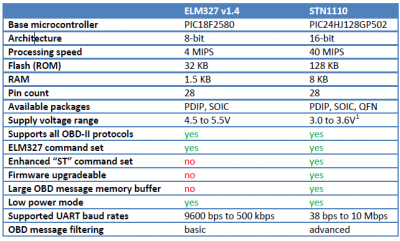
FMB module works with Blue-tooth OBD II dongles which are based on ELM327 or STN1110 chips. Comparison of these chips is presented in the image below: