
FTC921 First Start: Difference between revisions
No edit summary |
Replaced content with "{{Template:FTX First Start|model=FTC921}}" Tag: Replaced |
||
| (18 intermediate revisions by one other user not shown) | |||
| Line 1: | Line 1: | ||
{{Template:FTX First Start|model=FTC921}} | |||
Latest revision as of 14:40, 7 May 2025
Main Page > Basic Trackers > FTC921 > FTC921 First StartNext-generation high voltage 4G LTE Cat 1 vehicle GPS tracker with enhanced GNSS accuracy.

KNOW YOUR DEVICE

SET UP YOUR DEVICE
 |
Physical SIM card insertion/removal must be performed when device is powered off – external voltage disconnected. Otherwise, the SIM card might be damaged or device will not detect it. |

PINOUT
| PIN NUMBER | PIN NAME | DESCRIPTION |
 |
|---|---|---|---|
| 1 | VCC | (Red) Power supply (+10-90 V DC) (+). | |
| 2 | GND | (Black) Ground (-). | |
| 3 | DIN1 | (Yellow) Digital input, channel 1. DEDICATED FOR IGNITION INPUT. Input range: 7.5-90 V DC. | |
| 4 | AIN1 | (Grey) Analog input, channel 1. Input range: 0-90 V DC. | |
| 5 | DOUT1 | (White) Digital output. Open collector output. Max. 0,5 A DC. |
PC CONNECTION (WINDOWS)
- Power-up FTC921 with DC voltage (10-90V) power supply using power wires. LEDs should start blinking, see "LED BEHAVIOUR DESCRIPTION".
- Connect device to computer using USB Type-C cable and install USB driver, see "HOW TO INSTALL USB DRIVERS (WINDOWS)".
HOW TO INSTALL USB DRIVERS (WINDOWS)
- Please download COM port drivers from here.
- Extract and run TeltonikaCOMDriver.exe.
- Click Next in driver installation window.
- In the following window click Install button.
- Setup will continue installing the driver and eventually the confirmation window will appear. Click Finish to complete the setup.
CONFIGURATION (WINDOWS)
Most Teltonika devices are shipped with default factory settings. Use Telematics Configuration Tool (TCT) to change these settings according to your needs.
| TCT | |
|---|---|
| Operating system | Windows 10 Windows 11 |
| MS .NET Framework version | MS .NET framework 6.0 |
| Version | 64 bit |
| Disk Storage | 1 GB of free disk space |
| Internet | Ethernet port or Wi-Fi w/ network access for auto-update |
TCT
- Download the TCT (compressed archive).
- Extract the archive and launch the executable. The TCT will be installed.
- Launch the TCT.
- In the Discovered devices list, select your device and press Configure.
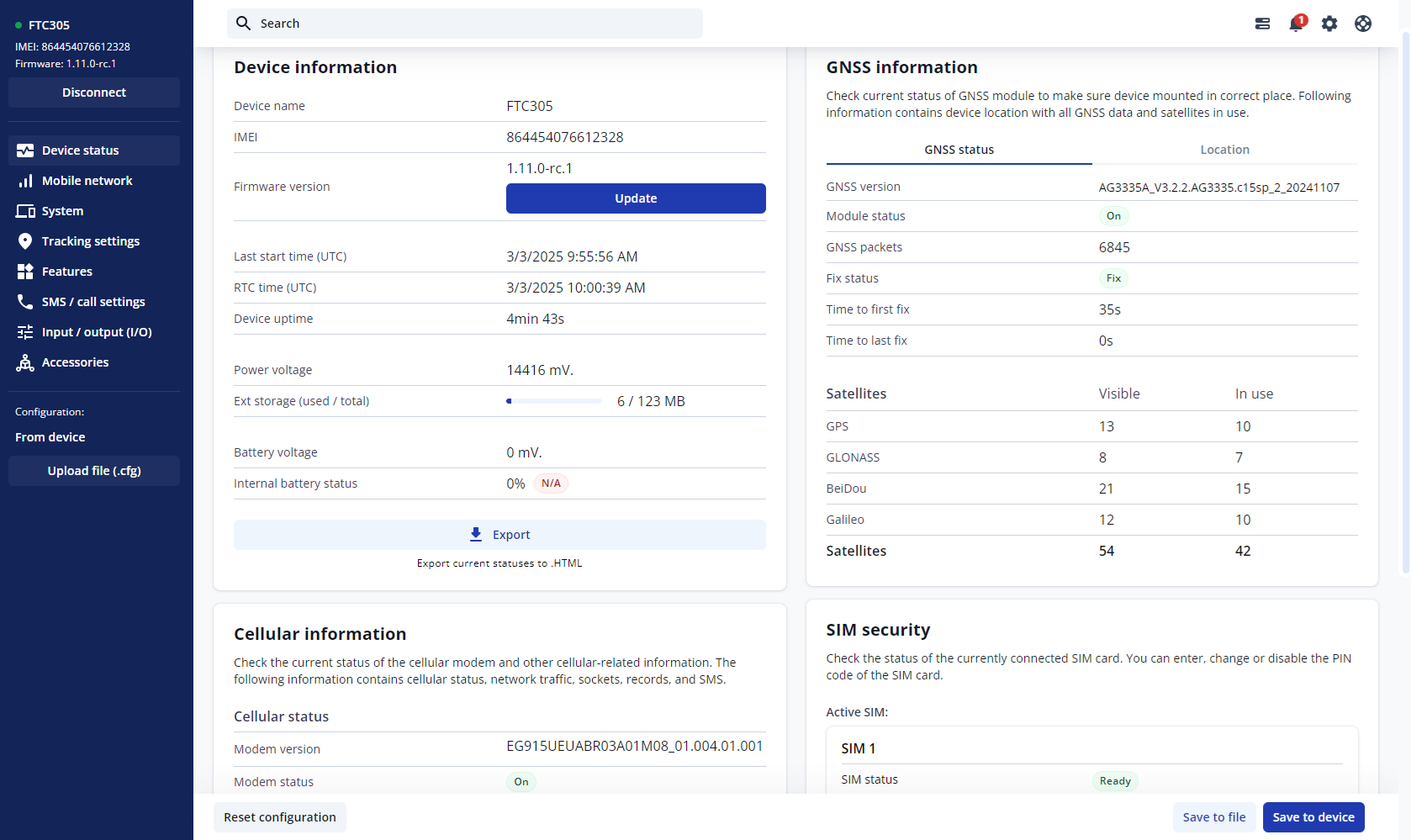
- The Device status window opens. It contains device, GNSS and Cellular information.


Save to device – saves configuration to device.
Upload file – loads configuration from file.
Save to file – saves configuration to file.
Update – update device firmware.
Reset configuration – sets device configuration to default.
Most important configuration sections are Mobile network (Server, Mobile network settings) and Tracking settings (data collection parameters). More details about FTC921 configuration using TCT can be found here.
QUICK SMS CONFIGURATION
The default configuration ensures best track quality and optimal data usage.
Quickly set up your device by sending this SMS command to it:

DEFAULT CONFIGURATION SETTINGS

After successful SMS configuration, FTC921 device will synchronize time and update records to configured server. Time intervals and default I/O elements can be changed by using TCT or Parameter list.
MOUNTING RECOMMENDATIONS
CONNECTING WIRES
- Wires should be fastened to stable wires or other non-moving parts. Any heat emitting and/or moving objects should be kept away from the wires.
- There should be no exposed wires. If factory isolation was removed while connecting wires, the isolation material should be applied.
- If the wires are placed in the exterior or in places where they can be damaged or exposed to heat, humidity, dirt, etc., additional isolation should be applied and the wires should not be loose.
- Wires cannot be connected to the board computers or control units.
CONNECTING POWER SOURCE
- Be sure that after the car computer goes to sleep mode, power might be still available on the power wires. Depending on car, this may happen in 5 to 30 minutes period.
- When module is connected, measure voltage again to make sure it did not decrease.
- It is recommended to connect to the main power cable in the fuse box.
- 3 A, 125 V external fuse shall be used.
CONNECTING GROUND WIRE
- Ground wire is connected to the vehicle frame or metal parts that are fixed to the frame.
- If the wire is fixed with the bolt, the loop must be connected to the end of the wire.
- For better contact scrub paint from the spot where loop is going to be connected.
LED INDICATIONS
This section is an explanation of LED indications on FTC921 device.
NAVIGATION LED INDICATIONS
| Behaviour | Meaning |
|---|---|
| Blinking every second | GNSS module is working, GNSS fix is acquired (normal operation) |
| Permanently switched on | GNSS module is working, but fix is not acquired (no position) |
| Off | GNSS module is off because: (a) the device is not working or (b) the device is in sleep mode |
STATUS LED INDICATIONS
| Behaviour | Meaning |
|---|---|
| Blinking every second | Device is working, GPRS session is active (normal operation) |
| On | Device is working, no active GPRS sessions |
| Off | Device is not working |
BASIC CHARACTERISTICS
| Module | |
|---|---|
| Name | FTC921-QJAB0 |
| Technology | LTE CAT 1/GSM/GPRS/GNSS |
| GNSS | |
| GNSS | GPS, GLONASS, GALILEO, BEIDOU |
| Receiver | 135 tracking/acquisition channels |
| Tracking sensitivity | -165 dBm |
| Position Accuracy | < 1.8 m CEP |
| Velocity Accuracy | < 0.1 m/s (within +/- 15% error) |
| Cellular | |
| 2G bands | FTC921-QJAB0: GSM: B2/B3/B5/B8 |
| 4G bands | FTC921-QJAB0: LTE FDD (CAT 1): B1/B3/B5/B7/B8/B20/B28 |
| Data transfer | LTE FDD (CAT 1): Max. 10 Mbps (DL) / Max. 5 Mbps (UL) GSM (GPRS): Max. 85.6 Kbps (DL) / Max. 85.6 Kbps (UL) |
| Transmit power | Class 5 for GSM850/900: 30±5dBM Class 3 for GSM1800/1900: 29±5dBM Class 3 for LTE-FDD: 26±5dBM |
| Data support | SMS (TEXT, PDU), Network protocols (TCP, UDP) |
| Power | |
| Input voltage range | 10 - 90 V DC |
| Back-up battery | 170 mAh Li-Ion battery, 3.7 V (0.63 Wh) |
| Internal fuse | 3A, 125V |
| Power Consumption | TBA At 12V < 25 mA (nominal with no load) At 12V < 0.25A Max (with full Load/Peak) |
| Physical Specification | |
| Dimensions | 118 x 48 x 18.5 mm (L x W x H) |
| Weight | 118 g |
| Interface | |
| Digital Inputs | 1 |
| Digital Outputs | 1 |
| Analog Inputs | 1 |
| GNSS antenna | Internal High Gain |
| GSM antenna | Internal High Gain |
| USB | 2.0 USB Type-C |
| LED indication | 2 status LED lights |
| SIM | Nano-SIM |
| Memory | 128MB internal flash memory |
| Physical Specification | |
| Dimensions | 93 x 43 x 12.5 mm (L x W x H) |
| Weight | 65 g |
| Operating Environment | |
| Operating temperature (without battery) | -40 °C to +85 °C |
| Storage temperature (without battery) | -40 °C to +85 °C |
| Operating temperature (with battery) | 0 °C to +40 °C |
| Storage temperature (with battery) | -20 °C to +60 °C |
| Operating humidity | 65 ± 20% non-condensing |
| Ingress protection rating | IP41 |
| Battery storage conditions | -10 °C to +50 °C for 1 month -10 °C to +35 °C for 3 months 0 °C to +30 °C for 1 year |
| Data Codec | |
| Codec support | Codec 8 Extended |
| Features | |
| Sensors | Accelerometer |
| Scenarios | Crash Detection, Over Speeding detection, Trip, Odometer, Eco driving, Excesive idling, Network jamming detection, Unplug detection, Auto Geofence, Towing detection, Static navigation, Custom Scenarios |
| Sleep modes | Online sleep, Deep sleep, Power off sleep |
| Configuration and firmware update | FOTA WEB, Telematics Configuration Tool (TCT) |
| SMS | Configuration, DOUT control, Debug |
| GPRS commands | Configuration, DOUT control, Debug |
| Time Synchronization | GNSS, NTP, NITZ |
| Ignition detection | Digital Input 1, Accelerometer, External Power Voltage |