
Test-AC: Difference between revisions
No edit summary |
No edit summary |
||
| (32 intermediate revisions by 2 users not shown) | |||
| Line 1: | Line 1: | ||
__TOC__ | |||
== | ==Introduction== | ||
[[Image:Cable112224402.jpg|thumb|400x300px|right]] | |||
Teltonika OBD devices are able to read data from heavy duty vehicles. With the OBD to FMS adapter, clients are able to connect OBD devices to their heavy duty vehicles which have FMS female connector (usually located under the front panel). Cable is only applicable with the European truck. | |||
<br><br><br><br><br><br><br><br><br><br><br><br><br><br> | |||
==Cable pinout scheme== | |||
[[Image:OBD-FMS-scheme.png|thumb|400x300px|right]] | |||
{| class="wikitable" | |||
|+'''Cable pinout scheme:''' | |||
!'''OBD 16PF''' | |||
! | |||
!'''FMS 12PM''' | |||
|- | |||
|4/5 | |||
== | |=> | ||
|1 | |||
|- | |||
|6 | |||
|=> | |||
|6 | |||
|- | |||
|14 | |||
|=> | |||
|9 | |||
|- | |||
|16 | |||
|=> | |||
|12 | |||
|} | |||
4 | |||
1 | '''DISCLAIMER:''' ''PLEASE MAKE SURE THE FMS PINOUT OF YOUR HEAVY DUTY VEHICLE IS AS REFERRED ON THE PROVIDED PINOUT SCHEME. IN CASE OF INCORRECT PINOUT PLEASE CONTACT YOUR HEAVY DUTY VEHICLE DEALERSHIP. THE CLIENT IS RESPONSIBLE FOR ALL THE ISSUES, WHICH MIGHT OCCUR BY INCORRECT INSTALLATION.'' | ||
'''NOTE:''' ''Please use OBD devices with the latest firmware which has implemented J1939 protocol support.'' | |||
==FMS Plug Location== | |||
Even though the FMS cable is standardized cable – its placement in the vehicle might differ depending on manufacturer and depending on vehicle trim level. | |||
These examples identify the most common locations for the FMS plug. | |||
==== Behind the Fuse panel on passenger side – for Example SCANIA S/R/G/P Euro6 Series [[File:Scania R-series 1.3.png|frameless|1000x1000px]] ==== | |||
==== Near the Fuse panel on passenger side – for example DAF XF Euro6 [[File:DAF XF 1.3.png|frameless|1000x1000px]] ==== | |||
==== Behind the Radio on lower deck – for example Volvo FH Euro5 and Renault T Euro6 [[File:Volvo FH 1.3.png|frameless|1000x1000px]] ==== | |||
==== Behind the Tachograph on upper deck – for example Mercedes Actros MP5 Euro6 [[File:Mercedes Actros 1.3.png|frameless|1000x1000px]] ==== | |||
==Device Configuration== | |||
1. Connect your OBD device to PC via USB or Bluetooth.<br> | |||
2. Open '''Teltonika Configurator''' and find your device in the list.<br> | |||
3. Select your device from the list.<br> | |||
4. Navigate to '''System''' and under '''System Settings''' Enable '''Codec 8 Extended''' protocol.<br> | |||
5. Open '''OBD II''' section on the left.<br> | |||
6. In '''General''' -> '''OBD II Settings''' -> '''OBD Feature''' select '''ELD'''.<br> | |||
7. In '''OBD VIN settings'''-> '''VIN Source''' select prefered source. Some heavy duty vehicles may not automaticly provide VIN number, in that case we recommend to setup VIN manually.<br> | |||
[[File:OBD II Settings.png|500x500px]]<br> | |||
8. Save the configuration by pressing '''Save to device''' on the top.<br> | |||
9. New section with J1939 parameters can be found in '''ELD''' section on the right bottom.<br> | |||
[[File:ELD Settings.png|500x500px]]<br> | |||
==Supported Parameter List== | |||
The full supported parameter list for OBD devices can be found in the following pages: | |||
*[[FMB001 Teltonika Data Sending Parameters ID]] | |||
*[[FMB003 Teltonika Data Sending Parameters ID]] | |||
1. | *[[FMC003 Teltonika Data Sending Parameters ID]] | ||
*[[FMM003 Teltonika Data Sending Parameters ID]] | |||
*[[FMM00A Teltonika Data Sending Parameters ID]] | |||
==Downloads== | |||
This functionality requires the latest OBD [[Teltonika Configurator versions|configurator]] and [[Firmware versions#OBD trackers|firmware]] for optimal performance. | |||
==Ordering and Specifications== | |||
For more information about '''OBD-II to FMS adapter''' specifications and ordering, please visit [https://www.teltonika-gps.com/products/accessories/data-cables/obd-ii-to-fms-adapter OBD-II TO FMS ADAPTER] web page. | |||
Latest revision as of 09:34, 8 May 2026
Introduction

Teltonika OBD devices are able to read data from heavy duty vehicles. With the OBD to FMS adapter, clients are able to connect OBD devices to their heavy duty vehicles which have FMS female connector (usually located under the front panel). Cable is only applicable with the European truck.
Cable pinout scheme

| OBD 16PF | FMS 12PM | |
|---|---|---|
| 4/5 | => | 1 |
| 6 | => | 6 |
| 14 | => | 9 |
| 16 | => | 12 |
DISCLAIMER: PLEASE MAKE SURE THE FMS PINOUT OF YOUR HEAVY DUTY VEHICLE IS AS REFERRED ON THE PROVIDED PINOUT SCHEME. IN CASE OF INCORRECT PINOUT PLEASE CONTACT YOUR HEAVY DUTY VEHICLE DEALERSHIP. THE CLIENT IS RESPONSIBLE FOR ALL THE ISSUES, WHICH MIGHT OCCUR BY INCORRECT INSTALLATION.
NOTE: Please use OBD devices with the latest firmware which has implemented J1939 protocol support.
FMS Plug Location
Even though the FMS cable is standardized cable – its placement in the vehicle might differ depending on manufacturer and depending on vehicle trim level.
These examples identify the most common locations for the FMS plug.
Behind the Fuse panel on passenger side – for Example SCANIA S/R/G/P Euro6 Series 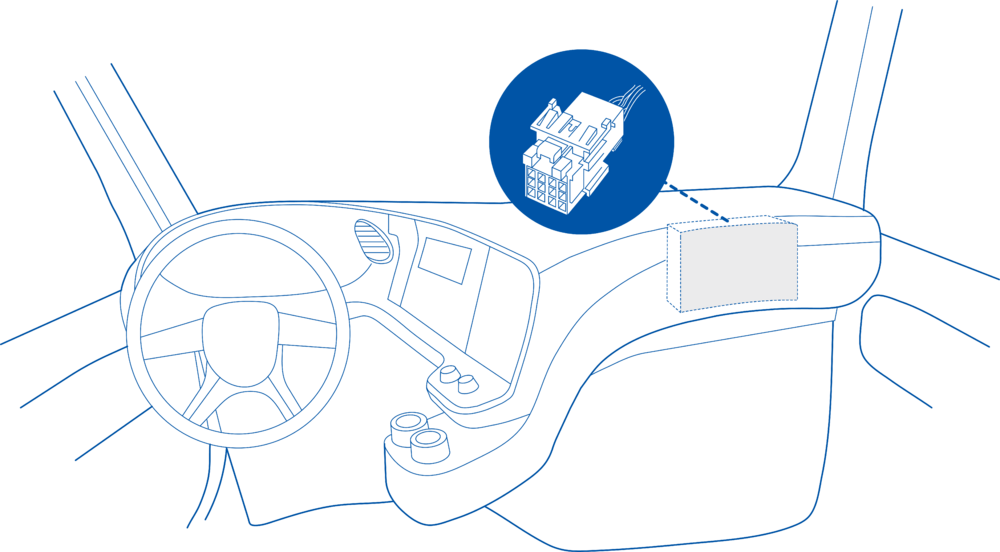

Near the Fuse panel on passenger side – for example DAF XF Euro6 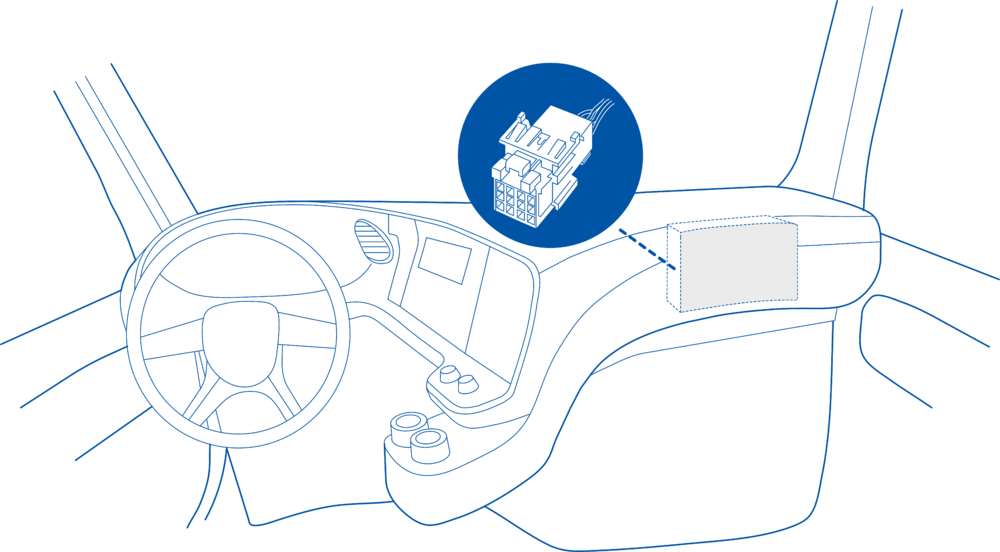

Behind the Radio on lower deck – for example Volvo FH Euro5 and Renault T Euro6 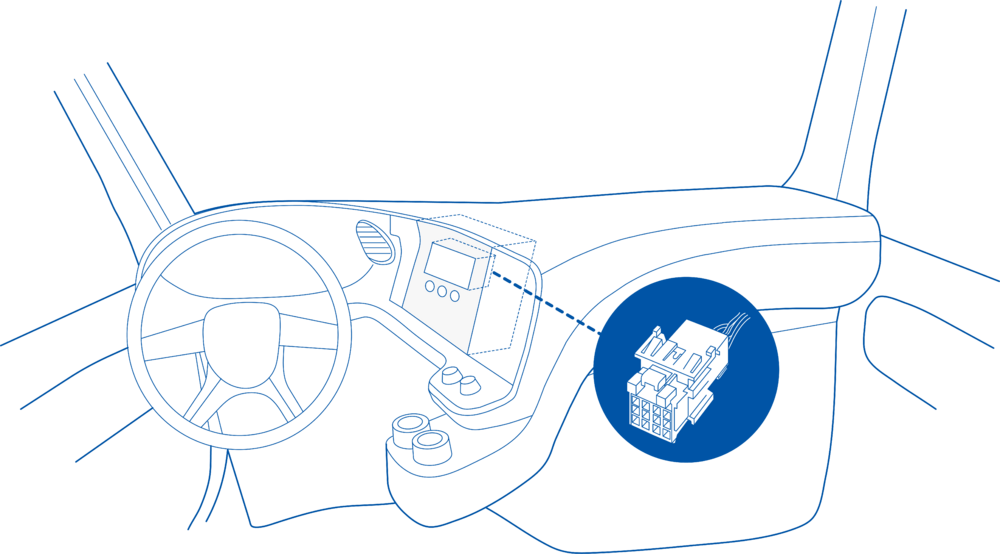

Behind the Tachograph on upper deck – for example Mercedes Actros MP5 Euro6 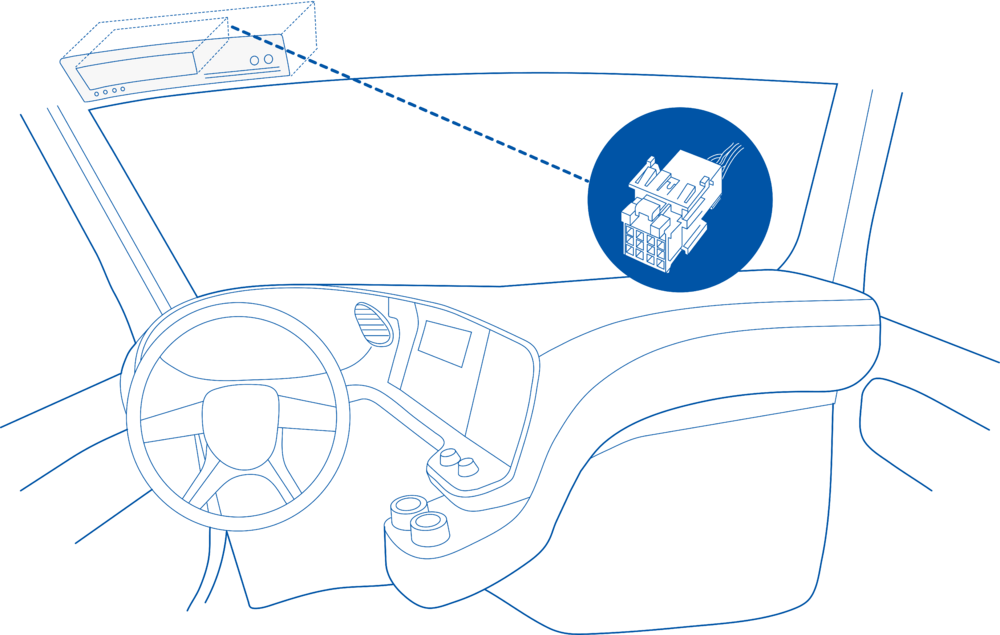

Device Configuration
1. Connect your OBD device to PC via USB or Bluetooth.
2. Open Teltonika Configurator and find your device in the list.
3. Select your device from the list.
4. Navigate to System and under System Settings Enable Codec 8 Extended protocol.
5. Open OBD II section on the left.
6. In General -> OBD II Settings -> OBD Feature select ELD.
7. In OBD VIN settings-> VIN Source select prefered source. Some heavy duty vehicles may not automaticly provide VIN number, in that case we recommend to setup VIN manually.

8. Save the configuration by pressing Save to device on the top.
9. New section with J1939 parameters can be found in ELD section on the right bottom.

Supported Parameter List
The full supported parameter list for OBD devices can be found in the following pages:
- FMB001 Teltonika Data Sending Parameters ID
- FMB003 Teltonika Data Sending Parameters ID
- FMC003 Teltonika Data Sending Parameters ID
- FMM003 Teltonika Data Sending Parameters ID
- FMM00A Teltonika Data Sending Parameters ID
Downloads
This functionality requires the latest OBD configurator and firmware for optimal performance.
Ordering and Specifications
For more information about OBD-II to FMS adapter specifications and ordering, please visit OBD-II TO FMS ADAPTER web page.