'''HOW TO CONFIGURE OEM PARAMETERS FOR FMX001/FMB003 '''
==OEM Parameters==
Are available in the OBD devices,
==OEM Parameters==
Are available in the OBD devices,
*For FMB003 03.27.07.Rev.562 Firmware must be installed in order to receive OEM data.
*For FMB003 03.27.07.Rev.562 Firmware must be installed in order to receive OEM data.
*For FMC003 03.28.03.Rev.94 Firmware must be installed in order to receive OEM data.
*For FMC003 03.28.03.Rev.94 Firmware must be installed in order to receive OEM data.
*For FMX001 03.27.12.Rev.143 Firmware must be installed in order to receive OEM data.
*For FMX001 03.27.12.Rev.143 Firmware must be installed in order to receive OEM data.
Before starting, kindly check if your vehicle is in the supported list, you can find the supported lists for OBD devices [[OBD_supported_vehicle_list|here]] </br>
Before starting, kindly check if your vehicle is in the supported list, you can find the supported lists for OBD devices [[OBD_supported_vehicle_list|here]] </br>
''Note: If your vehicle is not in the supported lists, it does not mean that you can not install the device - Regular OBD data will still be available.''
''Note: If your vehicle is not in the supported lists, it does not mean that you can not install the device - Regular OBD data will still be available.''
==Configuration on the Device Side ==
==Configuration on the Device Side ==
*Move to the ''system'', and enable the '''''codec 8E''''' :[[File:Codec.png|right]]
*Move to the ''system'', and enable the '''''codec 8E'''''
</br></br></br>
::[[File:Codec.png|left]]
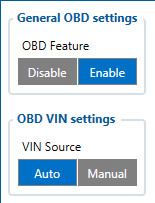
*[[File:OBDII.png|right]] Move to ''OBDII'':
</br></br></br>
*# On OBD feature select '''''OBD'''''
*[[File:OBDII.png|right]] Move to ''OBDII'': </br></br>
*# On OBD VIN setting: Select '''''Auto''''', this will automatically fetch the VIN number from the vehicle.
*# On OBD feature select '''''OBD''''' </br>
Note: If Auto was not able to fetch the VIN number automatically from the vehicle, select '''''Manual''''', and insert the VIN number of the Vehicle.
*# On OBD VIN setting: Select '''''Auto''''', this will automatically fetch the VIN number from the vehicle. </br></br>
*Enable the required IO parameters from the ''IO'' section by selecting the '''''low''''' priority
Note: If Auto was not able to fetch the VIN number automatically from the vehicle, select '''''Manual''''', and insert the VIN number of the Vehicle.
*Enable the required IO parameters from the ''IO'' section by selecting the '''''low''''' priority
</br>
</br>
Line 28:
Line 38:
This will push the device to connect to the FOTA WEB immediately.
This will push the device to connect to the FOTA WEB immediately.
Note: The device will request 1 or 2 files from the FOTA WEB.
Note: The device will request 1 or 2 files from the FOTA WEB.
==Configuration via GPRS/SMS Command ==
==Configuration via GPRS/SMS Command ==
Line 33:
Line 45:
Send the following command to the device via SMS </br>
Send the following command to the device via SMS </br>
'''Note''': If no login & password for SMS, two spaces should be inserted before the command.<br/><br/>
'''Note''': If no login & password for SMS, two spaces should be inserted before the command.<br/><br/>
Find all parameters list of OEM in this [[FMB003_Parameter_list#OBD_II_.28Bluetooth.29|link]]
Find all parameters list of OEM in this [[FMB003_Parameter_list#OBD_II_.28Bluetooth.29|link]]
==Verify the Status on FOTA ==
==Verify the Status on FOTA ==
Line 56:
Line 72:
! Under ''Details'', ''OBD'' section, you should see the ''VIN Number'' of your vehicle: !! Under ''Tasks'', you can verify if the file is delivered to the device or not:
! Under ''Details'', ''OBD'' section, you should see the ''VIN Number'' of your vehicle: !! Under ''Tasks'', you can verify if the file is delivered to the device or not:
For FMB003 03.27.07.Rev.562 Firmware must be installed in order to receive OEM data.
For FMC003 03.28.03.Rev.94 Firmware must be installed in order to receive OEM data.
For FMX001 03.27.12.Rev.143 Firmware must be installed in order to receive OEM data.
Before starting, kindly check if your vehicle is in the supported list, you can find the supported lists for OBD devices here
Note: If your vehicle is not in the supported lists, it does not mean that you can not install the device - Regular OBD data will still be available.
Configuration on the Device Side
Move to the system, and enable the codec 8E
Move to OBDII:
On OBD feature select OBD
On OBD VIN setting: Select Auto, this will automatically fetch the VIN number from the vehicle.
Note: If Auto was not able to fetch the VIN number automatically from the vehicle, select Manual, and insert the VIN number of the Vehicle.
Enable the required IO parameters from the IO section by selecting the low priority
After configuring the device, keep the device connected to the vehicle after the FOTA configured time, the device will automatically request to download the needed files from FOTA WEB to enable the OEM parameters.
We can speed up the process by sending a command to the device,
<login><space><password><space>web_connect
This will push the device to connect to the FOTA WEB immediately.
Note: The device will request 1 or 2 files from the FOTA WEB.
Configuration via GPRS/SMS Command
An example of how an OEM can enable fuel and mileage via SMS
Send the following command to the device via SMS <login><space><password><space>setparam 40000:1;40005:1;40430:1;40440:1
ID:
40000 – OBD Feature
40005 – VIN Source
40430 – OEM Total Mielge
40440 – OEM Fuel
Value:
1 – Enable
1 – Auto
1 – Enable (low)
1 – Enable (low)
Note: If no login & password for SMS, two spaces should be inserted before the command.
Before starting the test, the car's ignition should be On,
If you were not able to get OEM parameters using this method, you may have to check the following:
Device Firmware.
Check the device power and OBD cables in the vehicle.
Try to drive the vehicle for some time.
If the previous steps were not beneficial, then the vehicle is currently not supporting the OEM parameters and needs to perform reverse engineering.